
How to stop doomscrolling: a practical guide
Doomscrolling isn't a willpower problem: feeds are built to be hard to stop. Here's how to stop doomscrolling with practical, evidence-based tactics.

You open the app to check one thing, and forty minutes later you’re still swiping through headlines, an argument in the replies and someone else’s holiday photos, feeling worse than when you started. That’s doomscrolling: reading or watching a stream of bad or negative content long after it stopped being useful. This guide covers how to stop doomscrolling with tactics you can realistically keep up: what the habit is, why feeds are built to make it hard to put down, and where to start if you want the change to hold.
Quick answer
If you only make a few changes, make these:
- Turn off notifications for the apps you doomscroll on most, so nothing pulls you back in.
- Move those apps off your home screen and into your App Library, out of easy reach.
- Switch your phone to greyscale for a week; in one study, screen time fell when people did.
- Set a Screen Time limit on the categories that eat your day, and back it with a passcode.
- Decide in advance what you’ll do instead for the first thirty seconds you’d normally scroll.
- If nothing else holds, make the unlock cost you something physical, like a short walk.
What is doomscrolling?
Cambridge Dictionary defines doomscrolling as “the activity of spending a lot of time looking at your phone or computer and reading bad or negative news stories”. In practice it covers more than news: the same pull applies to an argument in the replies, a stranger’s relationship falling apart in public, or just an algorithmic feed that never quite runs out. What makes it doomscrolling rather than ordinary browsing is the shape of it. You keep going well past the point of enjoying it, and you’d struggle to say why you didn’t stop three screens ago.
Why feeds are so hard to stop
Part of the answer is structural. Infinite feeds are built for endless scrolling: there’s no page two to reach and no back cover, nothing that tells you you’re done unless the app decides to show you one. The entrepreneur widely credited with inventing infinite scroll, Aza Raskin, has said he regrets it, and testified in New Mexico’s trial against Meta over the harm its apps do to young people. Take away the natural stopping point, and the decision to stop has to come from you, every single time.
The other part is the reward pattern underneath it. A 2018 paper in Frontiers in Psychology describes how smartphone notifications and feeds run on an intermittent reinforcement schedule: sometimes the next post is dull, sometimes it’s exactly the thing that grabs you. The researchers note that a reward landing roughly half the time produces more anticipation, and more compulsive checking, than one that’s predictable, which is the same mechanism behind a slot machine. None of this means you lack self-control. It means the feed is doing what it was built to do.
See the shape of the problem first
Before picking a tactic, it helps to look at real numbers rather than a rough guess at how much you scroll. A tracked week can turn up something like this:
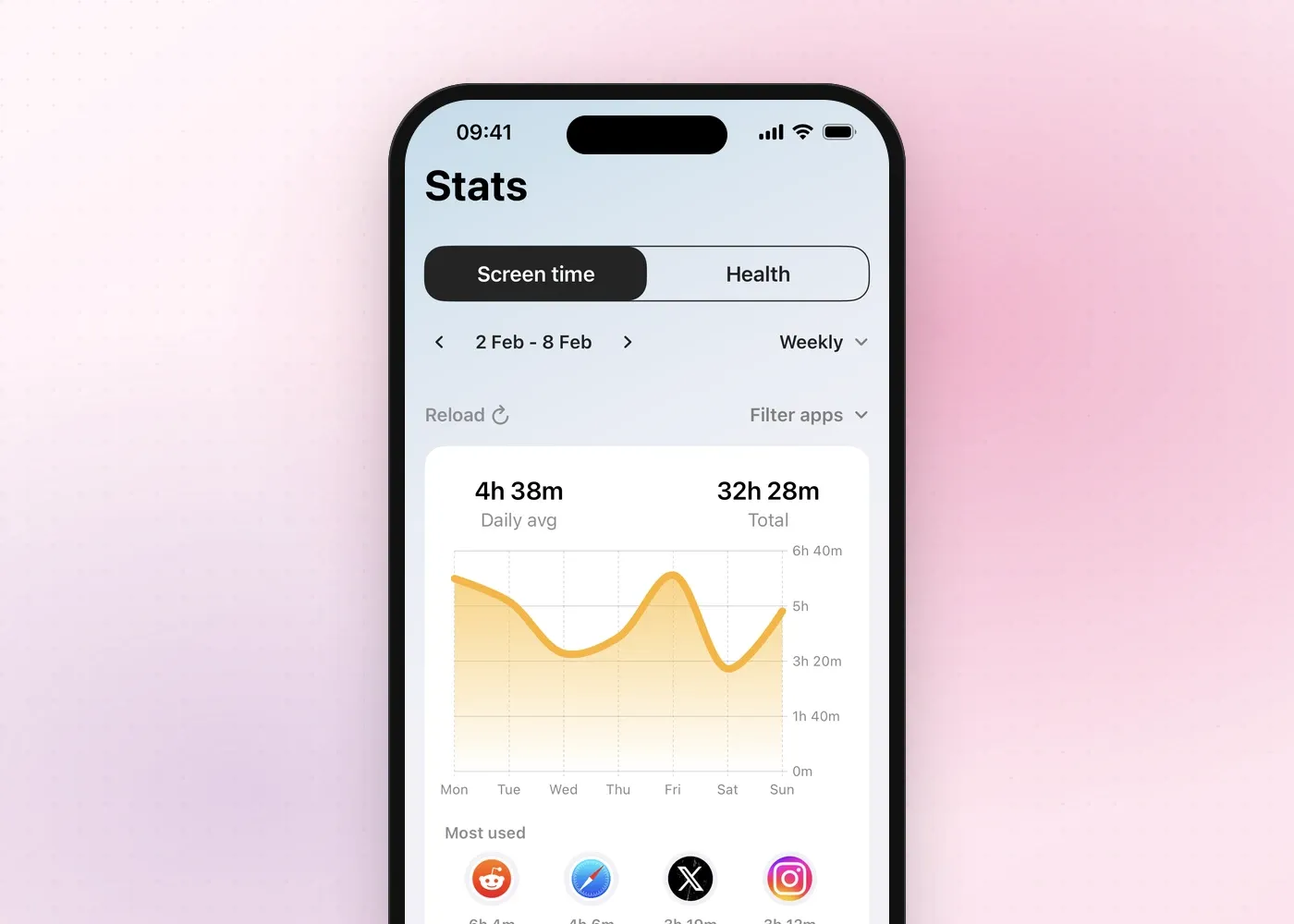
A daily average of 4 hours 38 minutes sounds abstract until you can see which two or three apps are behind most of it. That’s usually a better place to point the first tactic than “using my phone less” in general, which is too vague a target to change much.
How to stop doomscrolling: tactics from easy to strong
None of this is about willpower. It’s about changing the small phone addiction habits that make the first scroll so automatic, starting with the easiest changes and moving toward the ones that hold up when you’re tired, bored or stressed, which is when doomscrolling tends to happen.
Turn off notifications
Go to Settings > Apps > [app name] > Notifications and turn off Allow Notifications for the apps you doomscroll on most, as Apple’s own guide sets out. A notification is a cue to pick your phone up. Removing it doesn’t stop you opening the app on purpose. It stops the app from opening you first.
Move the app off your home screen
Touch and hold the app, tap Remove App, then tap Remove from Home Screen. Apple confirms this moves the app to your App Library rather than deleting it, so it’s still there when you go looking for it. That short delay, unlocking your phone and having to search, is often enough to interrupt the automatic reach.
Try greyscale for a week
Turn on Settings > Accessibility > Display & Text Size > Color Filters > Grayscale, as Apple describes here. A 2024 study in Mobile Media & Communication tracked 84 smartphone users for two weeks, a normal week followed by a week in greyscale, and found that screen time fell during the greyscale week. Without colour, a feed is a little less rewarding to keep scrolling through, and for some people that’s enough.
Set a proper time limit
Go to Settings > Screen Time > Time Allowances (still called App Limits on iOS 26 and earlier) and set a cap on the categories that eat your day. It’s worth pairing this with a Screen Time passcode, because a limit you set for yourself comes with a way past it by default, and our step-by-step guide to limiting screen time on iPhone covers exactly how to lock that down.
Replace the habit
Decide in advance what you’ll do instead for the first thirty seconds you’d normally spend scrolling: stand up, drink some water, message a real person instead of reading strangers argue. The urge to check doesn’t disappear, but you give it somewhere else to go before it turns into forty minutes.
Make the unlock cost you something
The strongest tactic is friction that costs you something physical, not a prompt you can dismiss with a tap. This is the idea behind Fitlock’s rule builder: pick a goal, and screen time for chosen apps stays locked until you’ve hit it. A rule might look like this: 1,000 steps AND 45 minutes of exercise earns an extra hour of screen time.
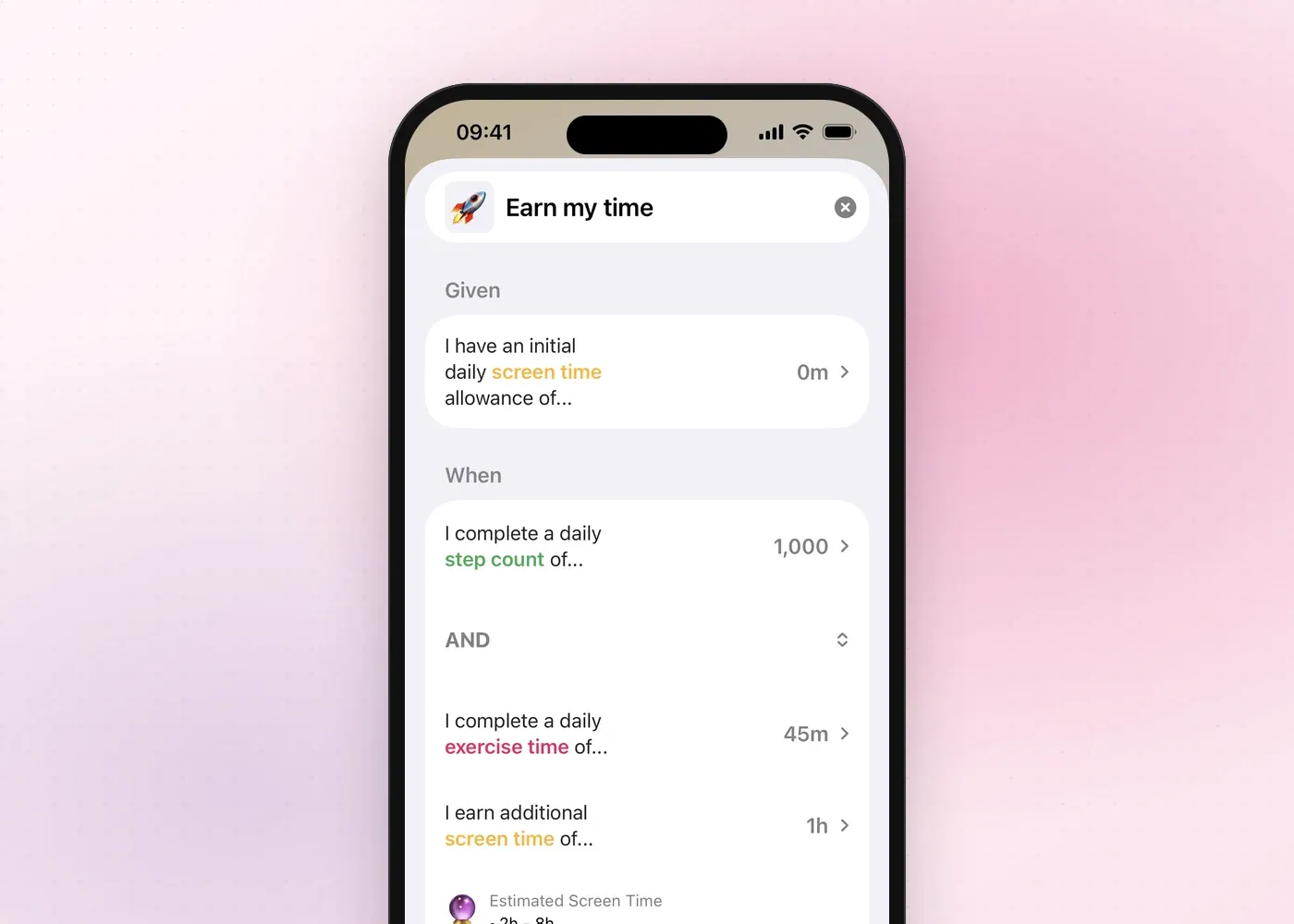
Combining two goal types with AND like this is a Fitlock Pro feature. Free accounts work with one goal at a time, such as a step count, which still adds real friction to whichever two apps you put on the blocklist. Fitlock uses Apple’s own Screen Time framework to do the blocking, so it holds system-wide rather than app by app. It sits in the same family as apps like one sec, which add a pause before you open a chosen app: both work by turning an automatic action into a decision. The FAQ and pricing page cover how the rules, schedules and Strict Mode work in more detail.
Put two or three of these together, say greyscale, a locked-down time limit and a friction-based unlock, and you’ve got a workable answer to how to stop doomscrolling that doesn’t depend on willpower at 11pm.
What to do when you catch yourself mid-scroll
Sometimes none of the above has kicked in yet, and you’re already twenty minutes deep with your thumb moving before you’ve decided to move it. A few things help in the moment:
- Name it. Saying “I’m doomscrolling” to yourself turns something automatic back into a choice.
- Put the phone down rather than just locking the screen; picking it back up is an extra step that matters.
- Change your posture: stand up, walk to another room, or get outside for a few minutes. Even a short walk changes what your body’s doing enough to interrupt the pattern.
- Pick one small, finishable task, replying to a message or loading the dishwasher, and do that instead of deciding to “just stop”.
The aim is to stop scrolling before the fortieth headline, not to swear off your phone forever. If it tends to happen at a particular time, last thing before bed is a common one, our piece on phone use before bed covers that case specifically, since the fix there is slightly different.
Where Fitlock fits in
Turning off notifications and switching to greyscale will get you a long way on their own. Fitlock is there for the days those aren’t enough: it blocks the apps you choose until you’ve hit a daily step, exercise or movement goal, using Apple’s Screen Time framework so it holds across your whole phone rather than one app at a time. Your health data stays on your device, and a rule can be as simple as one step goal or, on Pro, two goals combined.
Download Fitlock on the App Store and set your first rule in a couple of minutes.