
How to limit screen time on iPhone: a step-by-step guide
Apple's Screen Time can limit screen time on iPhone for free: here's how to set Time Allowances, a Screen Time Schedule and a passcode that finally sticks.

You don’t need a third-party app to start cutting back. Apple builds a full set of tools into every iPhone, called Screen Time, and it can cap app categories, block specific apps and websites, and lock your phone down during certain hours, all for free. The catch is that limits you set for yourself are just as easy to wave away.
This guide shows how to limit screen time on iPhone with Apple’s own settings, in the order that gets you the most protection for the least effort: turning it on, setting Time Allowances (App Limits, if you haven’t updated recently), scheduling proper downtime, deciding what’s Always Allowed, and locking the whole thing with a passcode so you can’t talk yourself out of it. Right at the end, there’s a note on why a passcode alone is often not enough, and where an app like Fitlock can pick up the slack.
Quick answer
If you just want the short version, here’s how to limit screen time on iPhone using nothing but its own iPhone Screen Time settings:
- Go to Settings > Screen Time > Manage Screen Time and tap Turn On App & Website Activity.
- Set Time Allowances for the app categories that eat your day.
- Add a Screen Time Schedule for the hours you want your phone quiet.
- Choose what stays Always Allowed, such as Phone, Messages and Maps.
- Turn on Communication Limits if calls and texts need restricting too.
- Set a Screen Time passcode so limits can’t be switched off with one tap.
The sections below cover each of these in the order Apple presents them in Settings, plus what to do once you notice “Ignore Limit” quietly undoing your good intentions.
How to limit screen time on iPhone: turn Screen Time on
Turning Screen Time on takes under a minute. Open the Settings app, tap Screen Time, tap Manage Screen Time, then tap Turn On App & Website Activity, per Apple’s guide to setting up Screen Time for yourself on iPhone. That switches on activity tracking, which everything below depends on.
Worth knowing: in iOS 27, Apple renamed two of the main features. What used to be called App Limits is now Time Allowances, and Downtime is now your Screen Time Schedule, according to Apple’s current Screen Time schedules and time allowances guide. If your iPhone is running iOS 26 or earlier, you’ll still see the older names, Downtime and App Limits, doing exactly the same job as the steps below. Once Screen Time is on, you can also tap Daily Average to see your total device time, a breakdown by app, and how many times you’ve picked up your phone that day.
Set Time Allowances for the apps you overuse most
Time Allowances let you cap how long you can spend in a whole category, such as Social Media, Games or Entertainment, or in a single app. Go to Settings > Screen Time > Time Allowances, tap a category (or tap Manage Categories first if you want to create a new one), then drag the slider, or tap the plus and minus buttons, to set how much time you’re allowing each day. Turn on Match Screen Time Schedule if you only want the allowance to apply during certain hours, as covered in Apple’s guide to Screen Time schedules and time allowances.
This is the setting most people mean when they search for how to set a screen time limit on iPhone for specific apps, rather than blocking them outright. Once the allowance runs out, the app greys out on the Home Screen and offers you a way past it anyway, which is exactly the loophole the passcode section further down is about.
Add a Screen Time Schedule for proper downtime
A Screen Time Schedule blocks most apps for a set stretch of the day, such as during dinner or after 9pm; long-time iPhone users will recognise it as Downtime. Go to Settings > Screen Time > Screen Time Schedule, turn on Schedule, tap Add Schedule, choose the days it applies to, then set the Time Window’s start and stop times and which Time Allowance categories are available during it.
If bedtime scrolling is the actual habit you’re trying to break, a schedule that starts an hour before you mean to sleep is one of the more useful settings in the whole Screen Time menu. We cover the sleep side of this in more detail in why your phone before bed is worth fixing.
Decide what’s Always Allowed
Not everything should be blocked. Go to Settings > Screen Time > Always Allowed and tap Add Apps or Add People to choose what stays reachable no matter what schedule or allowance is running: things like Phone, Messages, Maps, or a specific family member, so an emergency never runs into a locked screen.
Set Communication Limits, briefly
If calls and texts are part of the problem too, Screen Time can restrict who reaches you during certain hours. Go to Settings > Screen Time > Communication Limits, tap During Screen Time, then choose Contacts Only, Contacts & Groups with at Least One Contact, or Everyone. Tap When Device Paused or Unavailable to set a separate rule, such as Always Allowed or Everyone, for the times your schedule pauses the phone, following Apple’s guide to choosing who you can communicate with on iPhone. Most people leave this section alone, but it’s worth knowing it’s there.
Add a Screen Time passcode, because “Ignore Limit” is one tap away
Here’s the part that quietly undoes everything above. By default, when you hit a Time Allowance or a Screen Time Schedule you set for yourself, iPhone offers a way to carry on anyway, and because you’re the one who set the limit, nothing stops you tapping through it. A four-digit Screen Time passcode changes that: go to Settings > Screen Time > Manage Screen Time > Lock Screen Time Settings, then enter a passcode twice to confirm, exactly as laid out in Apple’s guide to creating, changing or removing a Screen Time passcode. From then on, changing your settings, or overriding a limit, needs that code first.
The trouble is you already know your own passcode, so it only slows you down by a few seconds. Some people ask a partner or friend to set the code for them instead, which works until you need to change a setting yourself. A limit you set for yourself only works as well as your willpower on the night you set it, which is a low bar at 11pm with a group chat blowing up.
Where an app like Fitlock helps
This is where Fitlock differs from Screen Time on its own. It runs on Apple’s own Screen Time framework, so the blocking is system-wide too, the same as everything above, but it makes unlocking cost you something other than a tap. Instead of a passcode you already know, you earn access back by hitting a goal you set for yourself, such as a step count, so getting past your own limit takes movement rather than four digits you typed in ten minutes ago.
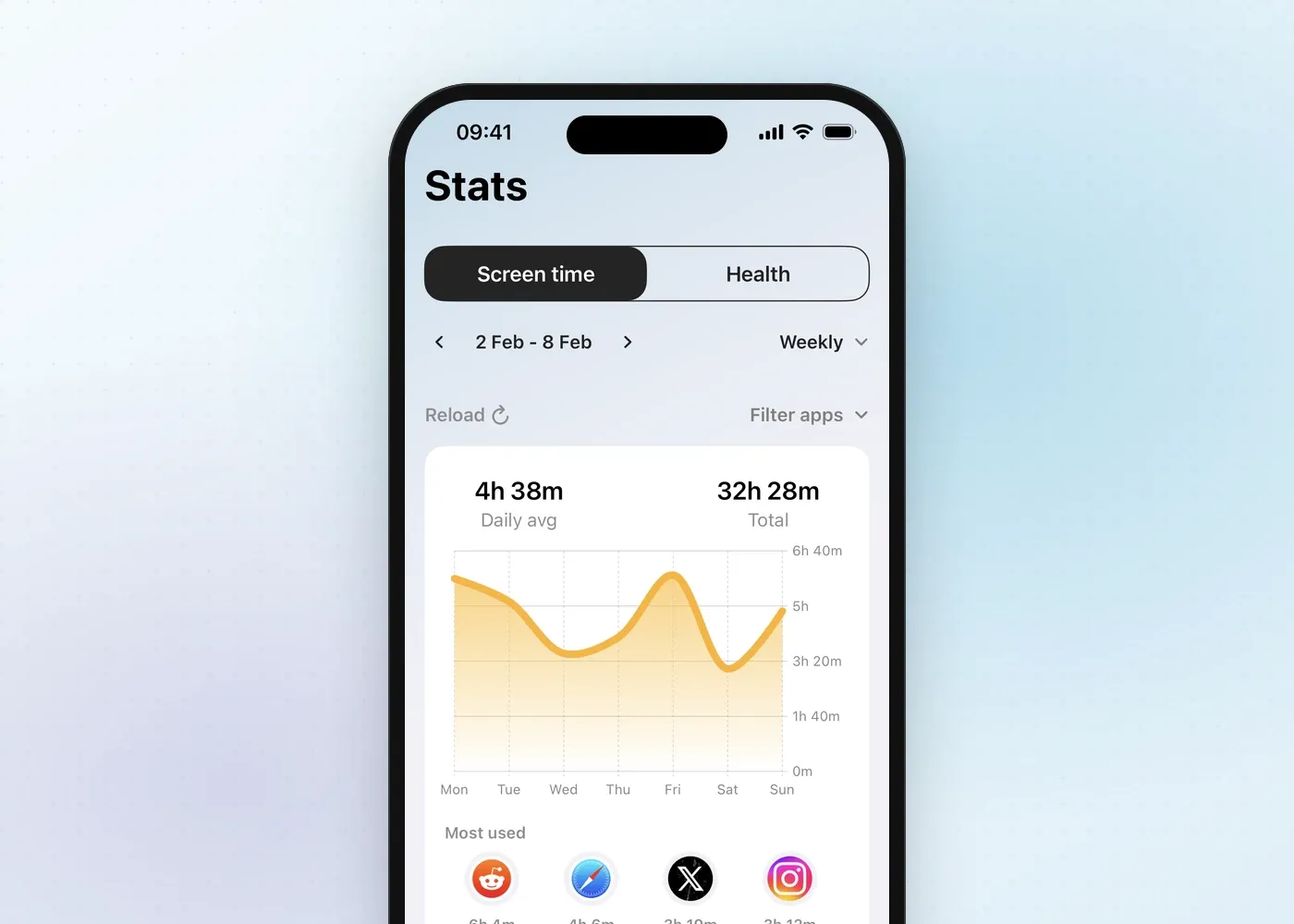
Fitlock’s schedule settings sit next to this, letting you choose which apps and websites to block, how difficult the unlock should be, and which days the schedule runs, in the same spirit as Apple’s own Screen Time Schedule, but backed by a goal instead of a code.
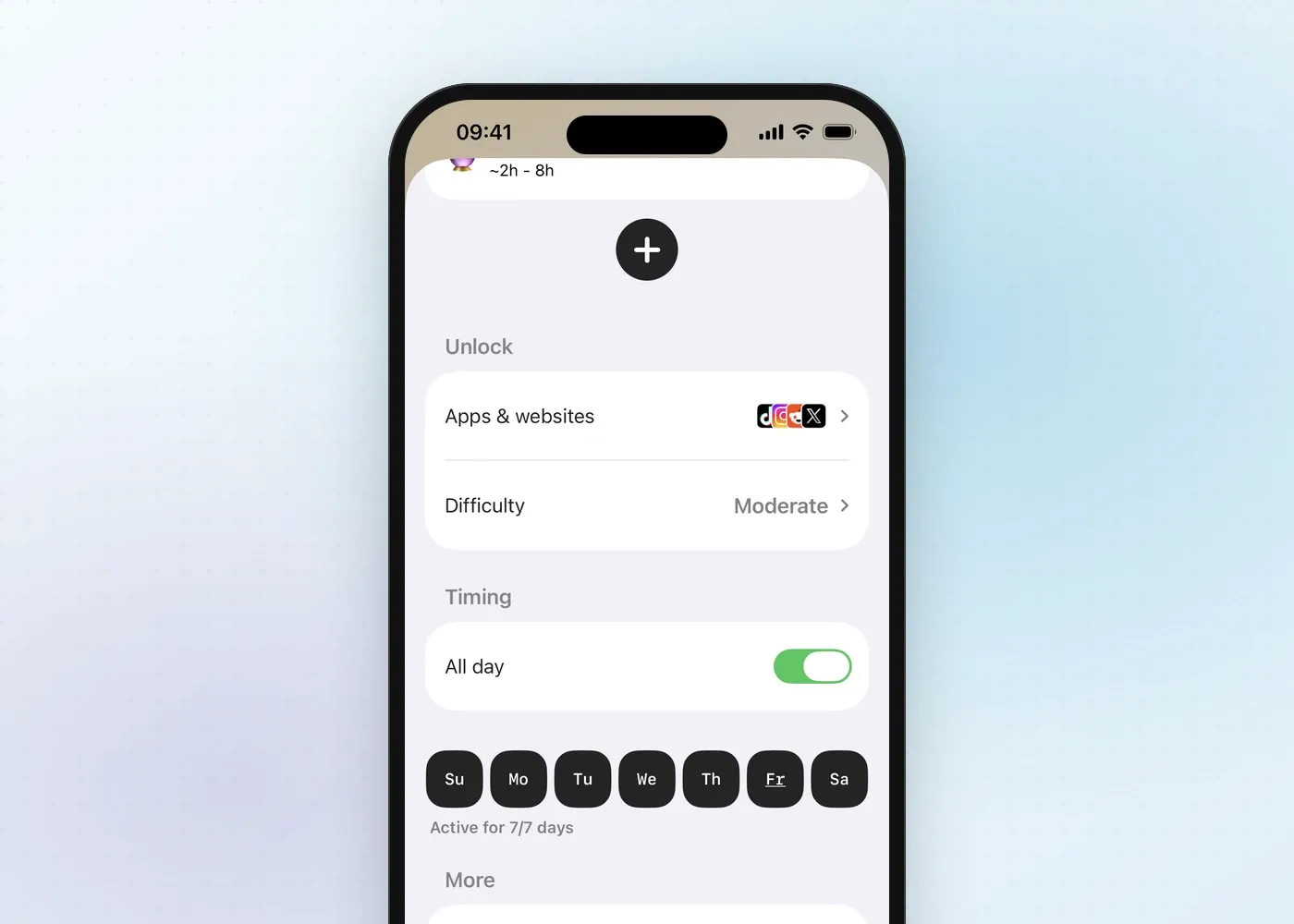
The free tier covers one schedule and up to two apps or websites, which is plenty if you’re trying to fix one specific habit, like cutting down social media screen time. Fitlock Pro removes those limits and adds Strict Mode, which stops the schedule being switched off at all until the goal’s met. Full details for both are on the pricing page, and common questions are answered on the FAQ.
Try Fitlock alongside Screen Time
Apple’s own settings are a solid, free starting point, and for plenty of people a Screen Time Schedule and a passcode are all they ever need. If you’ve tried that and still find yourself tapping “Ignore Limit” more than you’d like, tying your unlock to something like steps or exercise adds a kind of friction a passcode can’t.
Download Fitlock on the App Store to see how it works alongside the Screen Time settings you’ve just set up.