
How far back does iPhone Screen Time go, and how do you keep it?
Apple doesn't publish how far back iPhone Screen Time goes. Here's how to see past weeks, what can wipe them, and how to keep a longer record for good.

Apple doesn’t publish a limit for iPhone Screen Time history. You can swipe back through earlier days and weeks in Settings > Screen Time > Daily Average, but Apple’s guide doesn’t say how far that goes, and people report anything from a week to about four weeks. To keep a longer record, you have to save it yourself or use an app that does.
This guide covers where to find your history, what might wipe it and how to keep it, plus what the evidence says about whether moving more changes the numbers. We checked Apple’s steps against its iOS 27 Screen Time guide on 6 November 2026.
Quick answer
- Where to look: Settings > Screen Time > Daily Average, then tap Week or Day and swipe left or right.
- How far back it goes: Apple doesn’t say for the Settings screen. Reports range from about 7 days to about four weeks, and an Apple engineer has said apps can read “up to a month”.
- Getting older weeks back: nothing in Apple’s guide offers a way to restore or export older data.
- What might wipe it: turning off App & Website Activity, according to some reports. Others disagree, so note your totals first.
- Keeping it: screenshot your weekly report, log totals by hand, or let an app record them from now on. Fitlock’s screen time tracking does this on its free plan, on iOS 17 or later.
How to see your iPhone Screen Time history
On iOS 27:
- Open Settings and tap Screen Time.
- Tap Daily Average.
- Tap Week or Day.
- Swipe left and right to move between earlier periods. Scroll down to see Pickups and Notifications.
The path depends on your version:
| iOS version | Where your history is |
|---|---|
| iOS 27 | Settings > Screen Time > Daily Average, then Week or Day |
| iOS 26 | Settings > Screen Time > See All App & Website Activity, then Week or Day |
These steps come from Apple’s iOS 27 guide and iOS 26 guide. If a week looks much bigger than you remember, your iPad or Mac may be included. Why your iPhone Screen Time looks so high explains how to check.
How far back does iPhone Screen Time go?
Nobody outside Apple can give you a firm number for the Settings screen, because Apple doesn’t publish one. Its guide only says you can swipe to view your history, with no limit stated. Here’s what we could find instead:
| Source | What it says | How much weight to give it |
|---|---|---|
| Apple Support | You can swipe back through your history, no limit given | Official, but no number |
| Apple engineer, 2022 | Apps can read “up to a month” of activity, from the day you authorise them | Official, but about apps, not Settings |
| Apple Community, 2022 | One person saw 9 days, and a family member’s history first reached four weeks, then only went back to an iOS update | One household |
| Apple Community, 2019 | A user replied that 7 days was the limit | One user, and old |
So treat about four weeks as the most you can expect, not a promise. Your own phone may show less, especially after a software update.
Can you get older Screen Time data back?
Probably not. Apple’s guide doesn’t describe any way to restore or export older data, and when someone asked on Apple Community in 2025 why they couldn’t view their whole history, the only reply was that it’s how Apple designed it.
Apps can’t fetch it for you either. The same Apple engineer’s answer says an app’s access runs from the day it’s authorised, so a new app starts with a blank page. Any app that promises to bring back last year’s numbers deserves some doubt.
What clears your Screen Time history?
Apple’s guide says what the App & Website Activity switch does, but not what happens to your data when you turn it off. Reports disagree. Some people on Apple Community say it erases your history, while a 2025 thread includes someone saying that no longer happens on iPhone.
If you want to delete your history, that’s the switch people try first, but don’t count on it. If you want to keep your history, write down or screenshot your totals before you touch it.
How to keep a longer record of your screen time
You have three realistic options:
| Option | What you keep | The catch |
|---|---|---|
| Screenshot your weekly report | Totals and top apps, as images | You have to remember, and you can’t chart images |
| A note or spreadsheet | Whatever you type each week | It works until you skip a few weeks |
| An app that records usage | Totals, kept automatically | It only starts from the day you turn it on |
For the third option, compare what you’d get. Opal’s Focus Report, for example, only covers the time since you started using Opal. Fitlock has the same limit, because Apple sets it.
Does Fitlock keep your screen time history?
Yes, from the day you turn tracking on. We make Fitlock, and its Insights screen arrived in version 1.9 on 30 October 2026. It’s a single screen that shows your screen time beside your movement, by day, week or month. Steps and workouts come from Apple Health and your camera, and screen time comes from your iPhone’s Screen Time.
To keep your total for good, turn on screen time tracking in Insights and choose All Apps & Categories once. It only counts, and never blocks those apps. Your first number lands the next day, your trend appears after about two weeks, and your history is kept even if you later switch tracking off. It can’t fill in the weeks before you turned it on.
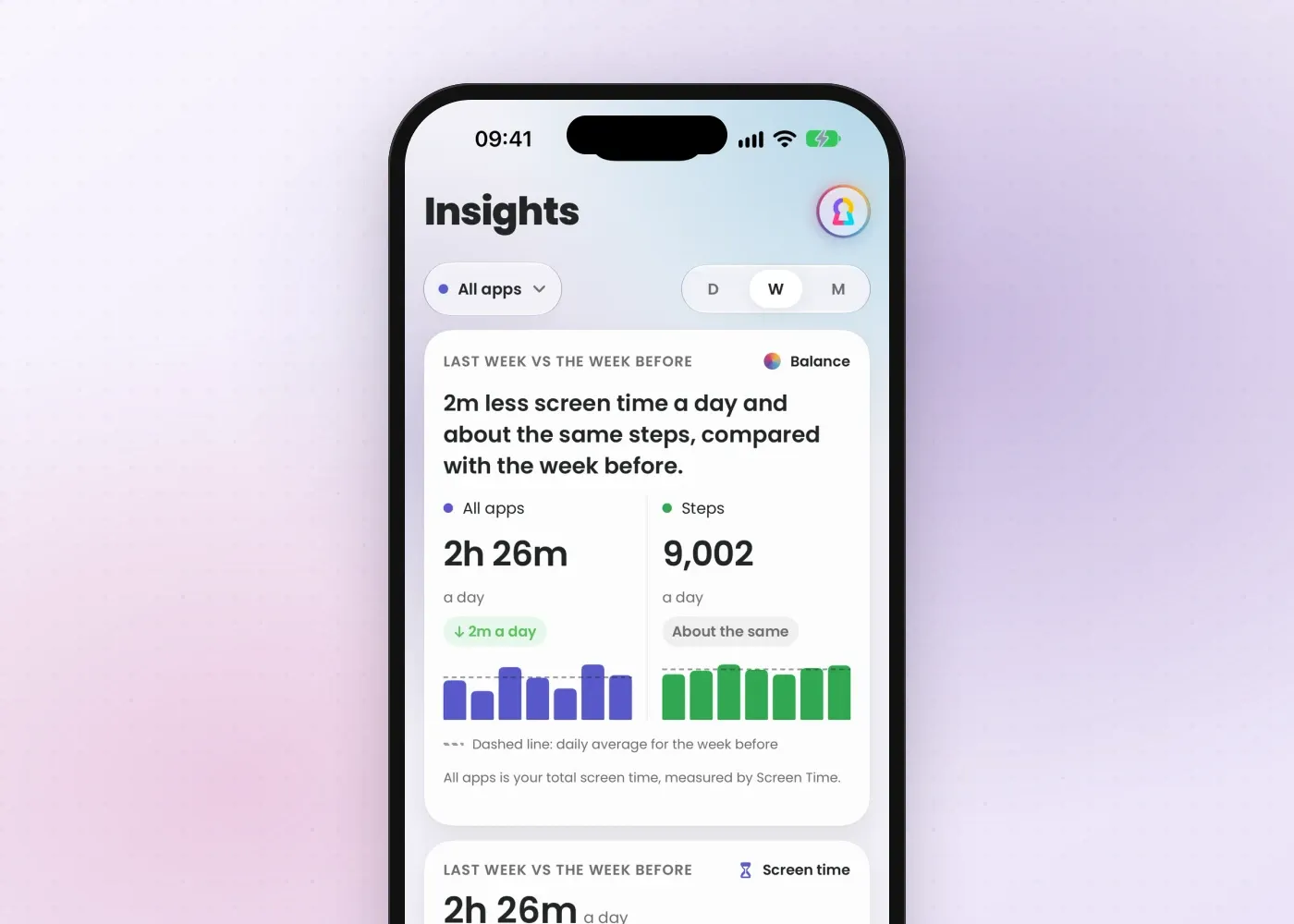
What you see depends on your plan:
| In Insights | Free | Fitlock Pro |
|---|---|---|
| Day and week views | This week and last week | Any period |
| Month view (last 4 weeks) | Not included | Included |
| Comparisons with earlier periods | Not included | Included |
| Most-used apps | Top 3 | Top 8 |
| Patterns | Top one | All of them |
| Since you joined | Lifetime totals | Trend and before and after |
Fitlock also keeps its own record of time on your blocked apps, and Apple Health holds your step history, so those comparisons can reach back further than Screen Time’s. Prices are on the pricing page. Fitlock needs iOS 17 or later.
Where’s my weekly Screen Time report?
Apple sends a Screen Time Weekly Report notification. Tap it to open the report, or find it again in Notification Center. Apple’s guide also says you can add a Screen Time widget to your Home Screen.
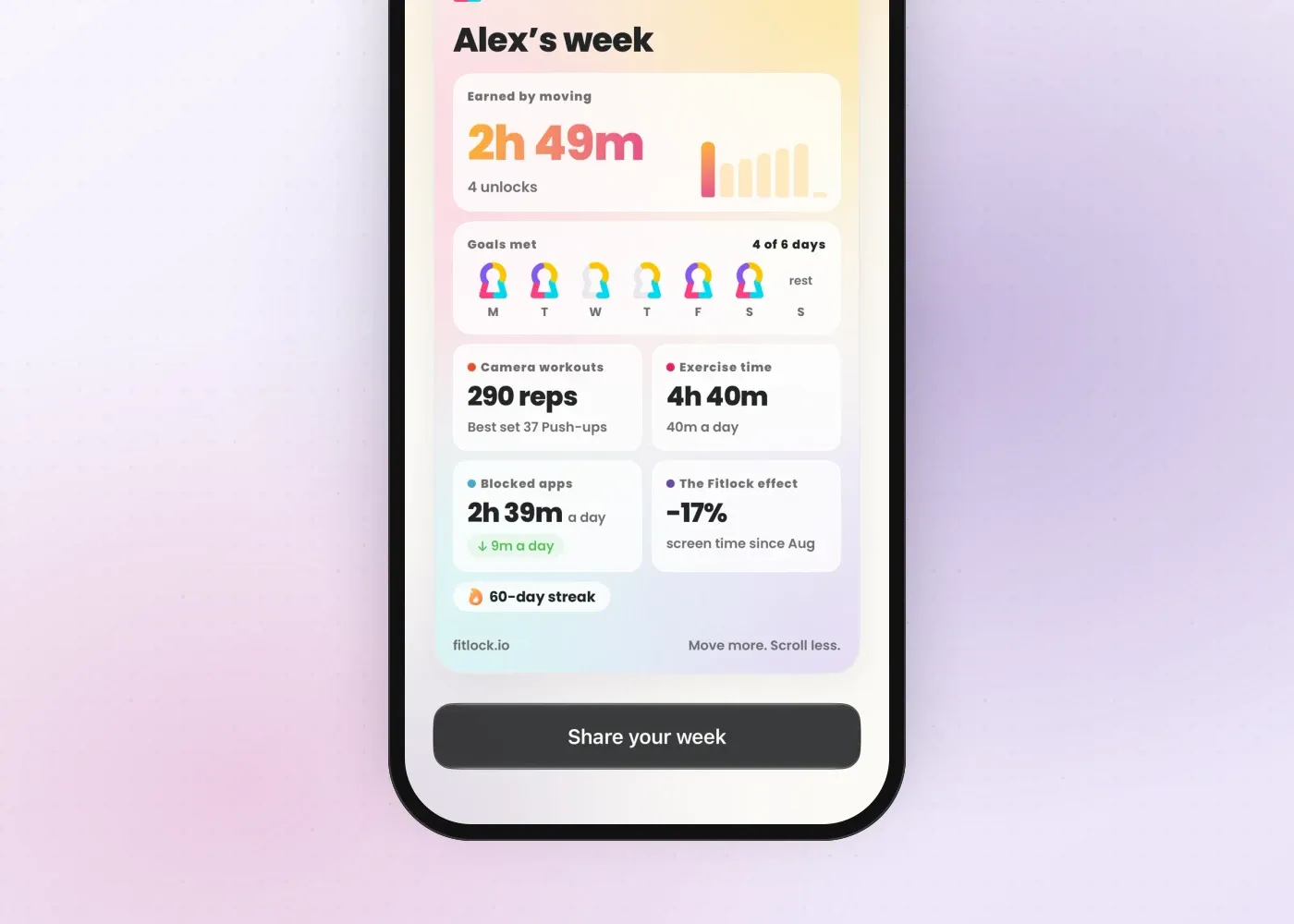
Fitlock adds its own weekly story every Monday. A “Your week is ready” notification opens a set of slides covering what you earned by moving, the goals you met, your steps and your screen time, and it ends on a recap card you can share. On the free plan you get the totals slides, and Pro adds the rest. If a number’s missing, the story drops it rather than showing you a zero.
Looking back like this may help. A 2016 review of 138 randomised studies, covering 19,951 people, found that prompting people to monitor their progress made them more likely to reach their goals, by a small to moderate amount, and more so when progress was recorded or shared. It didn’t test weekly summaries or phone use specifically.
Does moving more lower your screen time?
It might, but the evidence is mixed, and nobody has tested it on iPhone Screen Time data as far as we could find.
- For: in a 2022 German experiment with 642 social media users, people told to add 30 minutes of daily activity for two weeks were using social media less than a control group six months later, without being asked to cut back. The difference showed up at six months, not at the earlier checks, and most of the data was self-reported.
- Against: in a 2025 survey of 701 adults, exercising regularly didn’t significantly affect self-reported smartphone use.
So we won’t tell you moving more will cut your screen time. Your own data is the better test, and that’s what the side-by-side view in Insights is for. If you’d like to try it, earning screen time with exercise is a good place to start.
Start keeping your history today
Apple’s history is handy for a quick look, but it isn’t a record. The sooner you start saving your totals, the more you’ll have to look back on, whichever method you pick.
Download Fitlock on the App Store to keep your screen time in Insights from today.