
Why is my iPhone Screen Time so high? Check Share Across Devices
iPhone Screen Time higher than you used it? Share Across Devices can add your iPad and Mac to the total. Here's how to check and turn it off on iOS 27.

If your iPhone Screen Time is higher than you remember using it, check Share Across Devices first. With that switch on, Screen Time can combine your iPhone, iPad and Mac, so time on your other devices can look like time on your phone. On iOS 27 the switch is in Settings > Screen Time > Manage Screen Time.
It isn’t the only possible cause, and we’ll cover the others too. We checked Apple’s steps against its iOS 27 Screen Time guide on 6 November 2026.
Quick answer
- Most likely cause to rule out: Share Across Devices, which syncs usage across devices on the same Apple Account.
- How to turn it off on iOS 27: Settings > Screen Time > Manage Screen Time, then switch off Share Across Devices.
- What you give up: each device goes back to its own Screen Time settings, so limits no longer follow you between them.
- If it won’t switch on or off: on iOS 27, Apple says every device needs version 27 or later.
- If the number’s still wrong: give it a day, then look at the other causes below. Some overcounting has no known fix.
- If you use Fitlock: since version 1.9, a note warns you when other devices may be adding to your time. It’s on the free plan, and Fitlock needs iOS 17 or later.
What does Share Across Devices do?
Share Across Devices keeps Screen Time in sync across the iPhone, iPad and Mac signed in to the same Apple Account. On iOS 27, Apple says that covers your Screen Time Schedule, your Time Allowances and your usage data, and that you can see your combined activity across devices.
That’s useful if you want one set of limits everywhere. It’s confusing if you look at a total on your iPhone and assume it’s all phone time. An evening of films on an iPad can make your phone look like the problem.
How to turn off Share Across Devices
The switch moved in iOS 27. Older guides and videos will send you to the wrong place, so use the path for your version:
| iOS version | Where the switch is |
|---|---|
| iOS 27 | Settings > Screen Time > Manage Screen Time > Share Across Devices |
| iOS 26 and earlier | Settings > Screen Time, then scroll down to Share Across Devices |
These come from Apple’s iOS 27 guide and iOS 26 guide. Apple describes turning the switch on, and says each device has its own settings once it’s off.
Totals may not correct themselves straight away. Jomo, another screen time app, tells its users in its help article on inflated estimates to allow up to 24 hours, and then to turn Screen Time off on the other devices if that doesn’t help. Apple doesn’t publish a timescale.
How to tell whether other devices are being counted
You can check before changing anything.
- On iOS 26: go to Settings > Screen Time > See All App & Website Activity, then tap Devices and choose one device. Apple’s iOS 27 guide doesn’t describe this picker, so it may look different on your phone.
- On a Mac: open Screen Time in System Settings and use the Device pop-up menu, where you can choose one device or All Devices, as described in Apple’s Mac guide.
- Look for the mismatch: if you see hours on a day when your iPhone mostly sat on a desk, or apps you only use on your iPad, your total is probably combined.
Why won’t Share Across Devices work?
People search for this switch being greyed out, not working, or turning itself off. We couldn’t find an Apple page that explains those symptoms directly. Apple does document two requirements, so check them first:
- Every device needs the current software. On iOS 27, Apple says sharing needs iOS 27, iPadOS 27, macOS 27, watchOS 27 and visionOS 27 or later on all your Apple devices. One old iPad in a drawer could matter.
- Every device needs the same Apple Account. Sync only happens between devices signed in to the same account.
If both are fine and the switch still misbehaves, that’s one for Apple Support.
Other reasons your Screen Time looks too high
| What you’re seeing | What may be behind it | What to try |
|---|---|---|
| The total is far above what you remember | Other devices are included | Turn off Share Across Devices, or look at one device |
| The Home Screen widget is higher than Settings | The widget may be combining devices | Turn off Share Across Devices, though some people on Apple Community found that didn’t fix it |
| A big number under Pickups | Pickups counts how many times you picked up your device, not minutes | Read it as a count, not as time |
| An app’s usage alert fires far too early | Reports of overcounting in Apple’s tools for apps, even with sharing off | See below |
That last row matters if you use a blocking app. On Apple’s developer forums, app makers have reported Screen Time’s monitoring tools overcounting since iOS 17.6.1, and on iOS 18 too. One developer said that turning Screen Time off completely on other devices fixed it for many of their users, though not all of them. An Apple support engineer in that thread said they couldn’t disagree that it looked like a bug, and had no timescale for a fix. That was in 2024, and we’ve found no public word that it’s been resolved.
So be wary of anyone promising a guaranteed fix, ourselves included. If you’ve turned the setting off and still see odd numbers, you may be looking at something only Apple can correct.
Does Share Across Devices affect screen time apps?
Apps that block other apps, including Fitlock, which we make, rely on Apple’s Screen Time system to measure usage. Apple doesn’t tell those apps which device the time came from, or whether Share Across Devices is on. With the setting on, time on your iPad can count against an allowance on your iPhone, and you can run out early without having touched your phone.
Since version 1.9, released on 30 October 2026, Fitlock watches for signs of this. It looks for usage climbing faster than the clock allows, or growing while your iPhone is locked. When it’s seen that on more than one recent day, a small note appears on the schedule: “Time looks too high? Your other devices may be adding to it.”
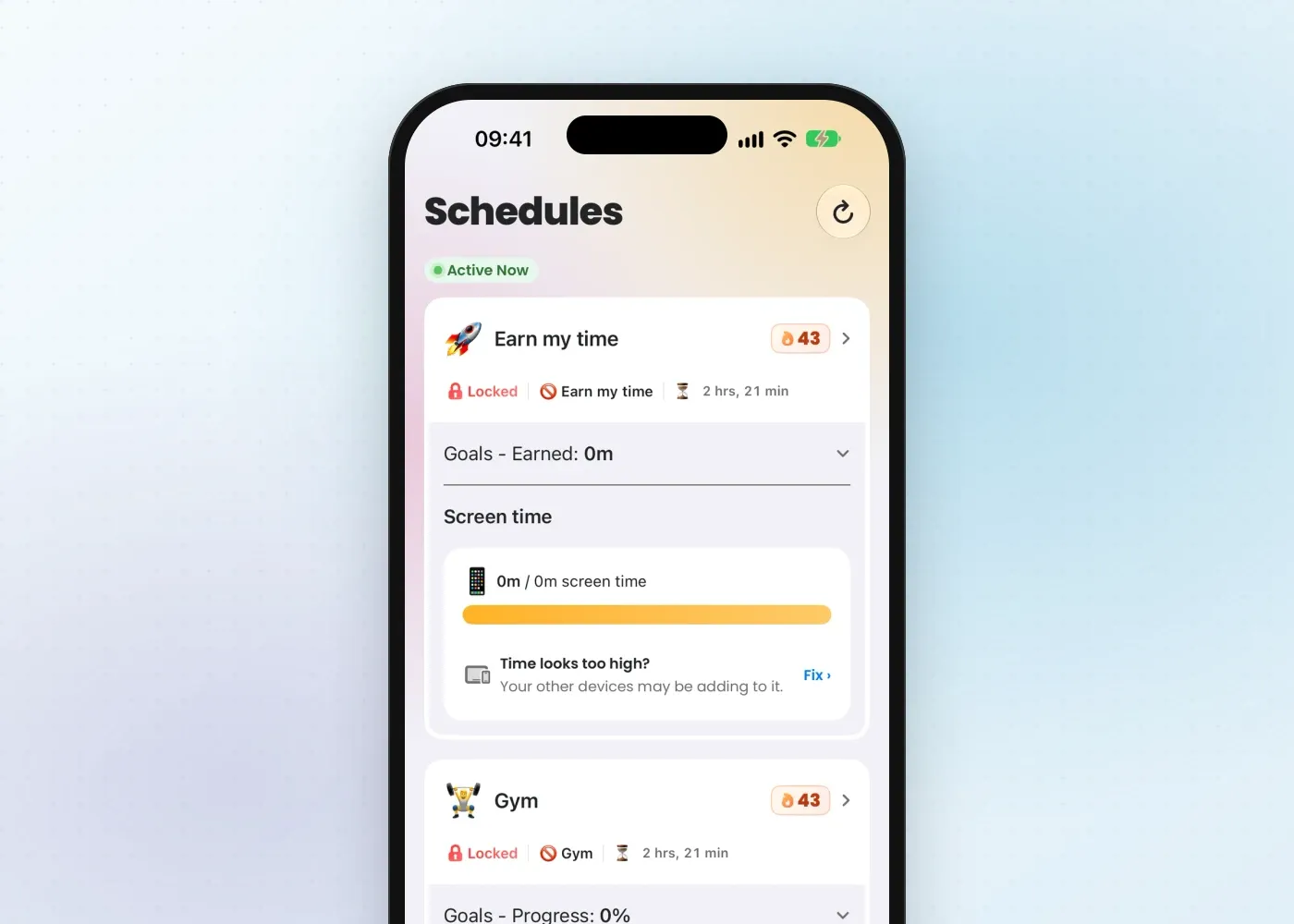
Tapping Fix opens a short guide, “Count this iPhone only”, with a button that opens Settings. The note is a best guess rather than a diagnosis, because Fitlock can’t read the setting itself. It doesn’t change your blocking, and if you only have one device, you shouldn’t see it.
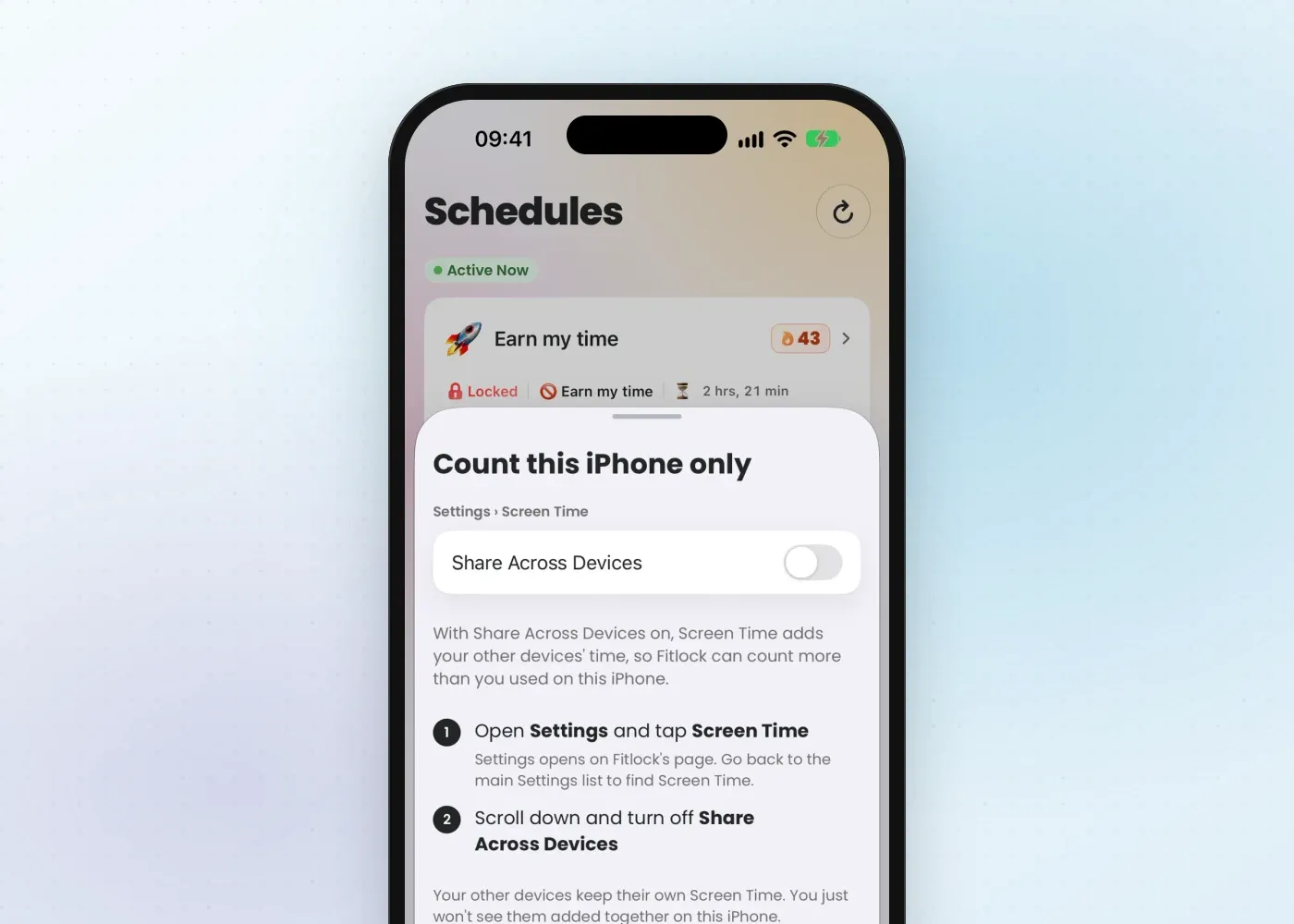
The trade-off is the same one Apple describes: your other devices keep their own Screen Time, and you won’t see them added together on this iPhone. If you want one combined total, you may prefer to leave sharing on and read the numbers with that in mind.
Get a number you can trust
Once your total reflects one device, it’s worth looking at what it says. Our guide to how far back iPhone Screen Time goes covers finding and keeping your history, and how to limit screen time on iPhone covers what to do about it with Apple’s own tools.
If you’d like limits you can’t wave away, Fitlock locks the apps you choose until you’ve moved, and the FAQ covers how it works. The note above comes with the free version, and pricing has the rest.
Download Fitlock on the App Store to see your screen time alongside your steps.