
Where to put your phone for a push-up counter app
Where should your phone go for a push-up counter app? A 2026 study found a diagonal view about 1 to 2 metres away worked best. Here's how to set it up.

For a push-up counter app, put your phone on the floor at a diagonal to your body, about 1 to 2 metres away, with your whole body in frame. In the best study we could find, that position counted reps most accurately, while a phone straight in front of you and far away did worst. The right spot still depends on the app, so test it with a short set.
This guide covers what that study found, how to set up for push-ups and squats, and why reps get missed. It isn’t a review of any one app’s accuracy, including ours.
Quick answer
- Push-ups: a diagonal view, about 1 to 2 metres away, propped at floor level.
- Squats: a diagonal view, about 2 metres away, with your feet and head in shot.
- Avoid: a front view from far away for push-ups, and a side view from close up for squats.
- Before you start: good light, a clear background and fitted clothes.
- If reps aren’t counting: move back until your whole body is in frame, and go through the full range of the rep.
- If you use Fitlock: since version 1.9, it counts reps wherever you put your phone, on every plan, though these positions are still the place to start.
What the research says about camera position
The clearest evidence is a 2026 study in JMIR mHealth and uHealth. Researchers had 44 healthy university students do push-ups or squats in front of a phone in 12 set-ups, using three angles and four distances, and checked the count against human raters.
| Exercise | Camera position | Detection rate | Average miscount |
|---|---|---|---|
| Push-ups | Diagonal, 90 to 180 cm | Up to 85.7% | 0.28 reps |
| Push-ups | Front, 360 cm | 20% | 2.70 reps |
| Push-ups | All positions | 61.1% | 1.08 reps |
| Squats | Diagonal, 200 cm | 95.5% | 0.05 reps |
| Squats | Side, 90 cm | 0% | 5 reps |
| Squats | All positions | 61.5% | 1.11 reps |
The authors concluded that phone position strongly affects accuracy, with diagonal and front views at 180 to 200 cm working best overall. Keep in mind that each trial was only about five reps, the volunteers were healthy students, and the system tested isn’t Fitlock’s or Apple’s. These numbers show how much position can matter, not how accurate any particular app is.
Where to put your phone for push-ups
Push-ups are awkward for a camera, because your body is low and flat, and your arms and legs can block each other from some angles.
- Prop the phone on the floor. Lean it against something that won’t move, such as a water bottle or a heavy book. A shoe will do, if it isn’t going anywhere.
- Set it at a diagonal. The study’s diagonal view was at 45 degrees, so place the phone off to one side of your head, rather than straight in front of you or level with your hips.
- Move back to about 1 to 2 metres. Close enough that you fill a good part of the screen, far enough that your feet are still in shot.
- Check the frame from the plank position. Get into your push-up position before you start, because that’s when your body’s at its longest.
- Do three test reps. If they count, you’re set. If they don’t, shift the phone back or to the side.
Where to put your phone for squats
Squats are easier, because you’re upright. The same study’s best result was a diagonal view at 2 metres, and diagonal and front views beat side views at every distance it tested for squats.
Stand the phone on a low shelf or lean it against a wall, step back, and check your feet and the top of your head stay in shot at the top of the movement. Don’t film from close up and side-on, which was the worst set-up in the study.
Why does my phone miss push-up reps?
Camera counters track points on your body. Apple’s Vision documentation gives a good idea of what helps. Its body pose tool finds up to 19 points per person, and Apple’s advice is to keep most of those points visible, to have the person take up at least about a third of the image height, and to watch out for flowing clothing.
Here’s how that plays out in a workout:
| What goes wrong | Why it happens | What to try |
|---|---|---|
| Nothing counts at all | The app can’t see your whole body | Move the phone back and check the frame |
| Every other rep counts | You’re not going low enough or fully extending | Do the full rep, a bit slower |
| The count stops mid-set | You’ve drifted out of shot | Mark your spot, and check your hands |
| Counting is erratic | Poor light or a busy background | Face a window or turn a light on |
| Reps are counted oddly | Baggy clothes hide your shape | Wear something fitted |
| Someone else gets tracked | Another person is in shot | Clear the room, or change angle |
Apple doesn’t publish accuracy figures for this tool, and we couldn’t find an independent study of it for push-ups or squats.
Does Fitlock count push-ups from any angle?
We make Fitlock, so take this section with that in mind. It counts push-ups and squats with your iPhone’s camera, so you don’t need a wearable. Version 1.9, released on 30 October 2026, reworked the counting so that it’s no longer tied to one fixed position, and reps are now counted wherever you put your phone.
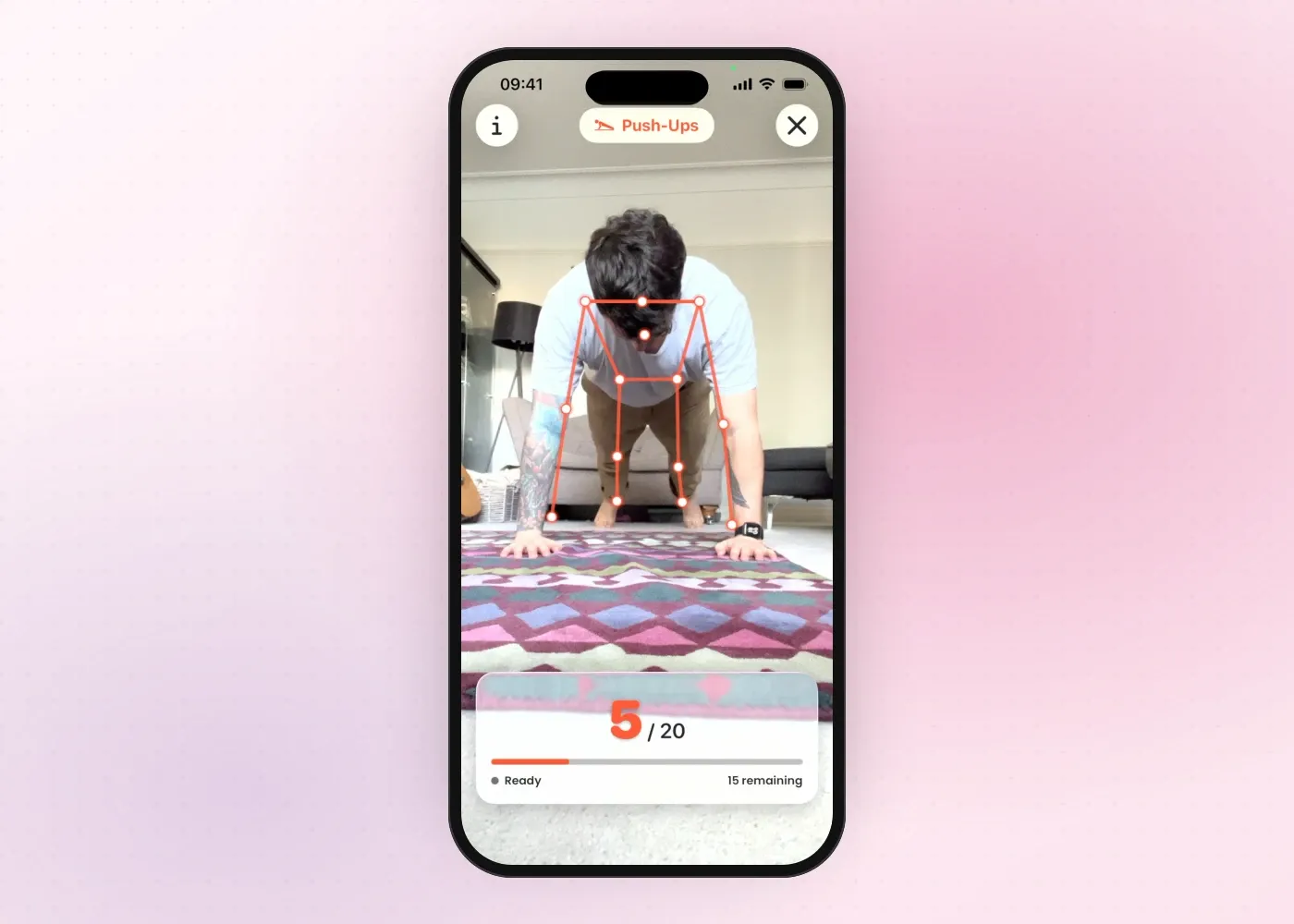
That said, we haven’t published an accuracy figure, and a camera still has to be able to see you. The advice above holds: keep your whole body in frame, and if a set isn’t counting well, a diagonal view is the first thing to try. Fitlock also gives prompts as you go, such as “Lower your chest more” or “Move into frame”, so you can tell what it can’t see.
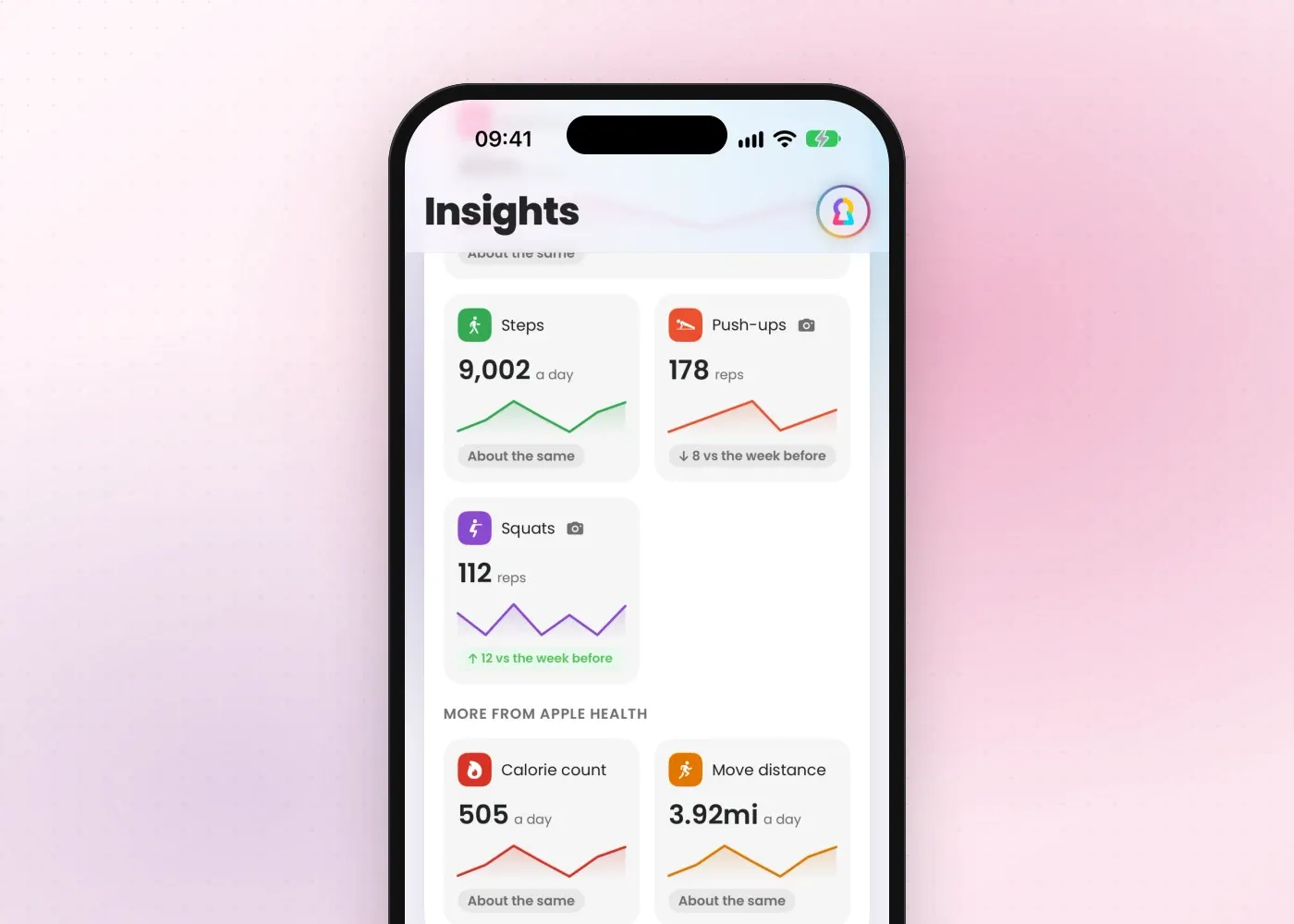
Your reps count towards whatever goal you set. Finish them and your chosen apps unlock, or you earn more screen time, depending on how you’ve set up the schedule. They also show up in Insights and your weekly story, and you can see the totals alongside your screen time.
Other apps count reps with a camera too, including Pushscroll and PushUp Time. We’ve compared them on our alternatives page. Most of the setup advice in this post should apply to any of them, though each app’s own guidance comes first.
A quick setup checklist
Before your first set, run through this:
- The phone is propped up and can’t slide or tip over.
- You’ve got a diagonal view, about 1 to 2 metres away.
- Your whole body is in shot, from your hands to your feet.
- The room is well lit, with nothing busy behind you.
- You’re wearing something fairly fitted.
- There’s nobody else in shot.
Make your reps count for something
Counting reps is more motivating when it pays off, and they’re worth doing: the NHS advises strengthening activities on at least 2 days a week, and lists exercises such as push-ups among them. Our guide to earning screen time with exercise has ideas for goals that are hard enough to matter and easy enough to keep doing, and how to take a rest day without losing your streak covers the days you need a break. What’s free and what’s in Pro is on the pricing page.
Download Fitlock on the App Store, set a push-up goal, and see how your phone does from where you put it.